CORTEN STEEL FLAT TOP EDGING HOW TO
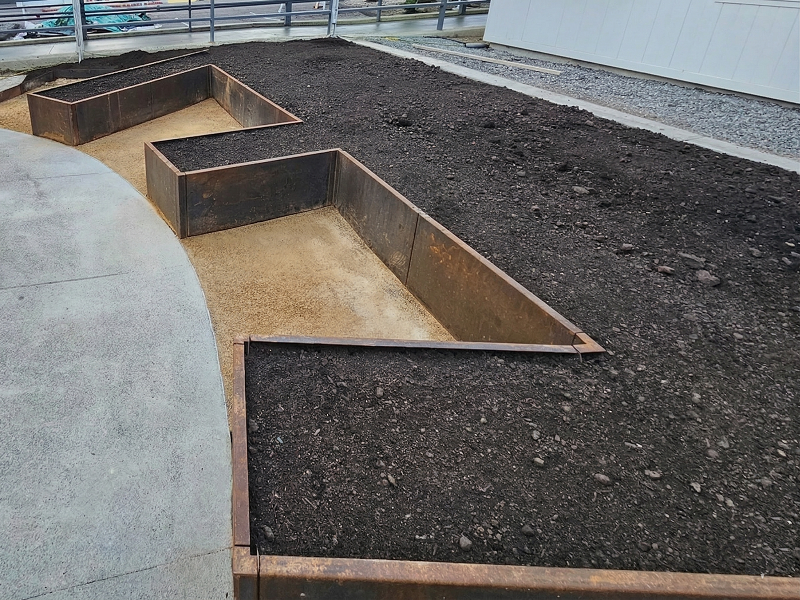
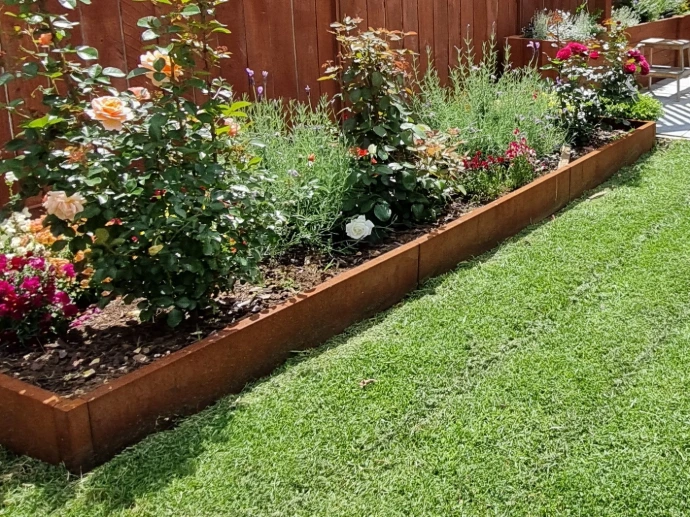
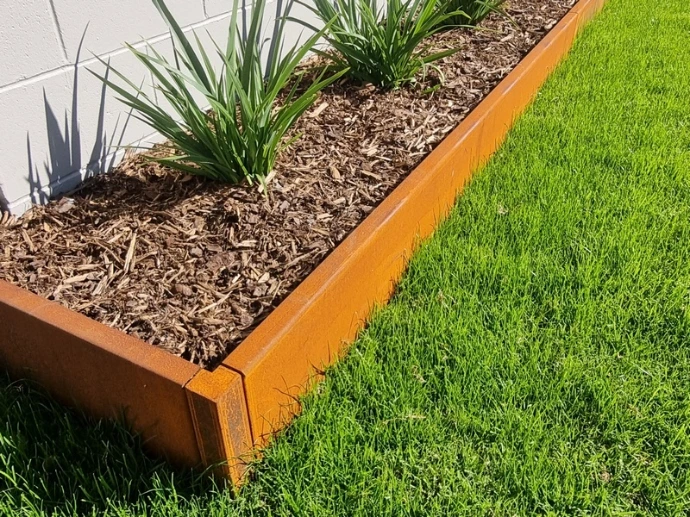
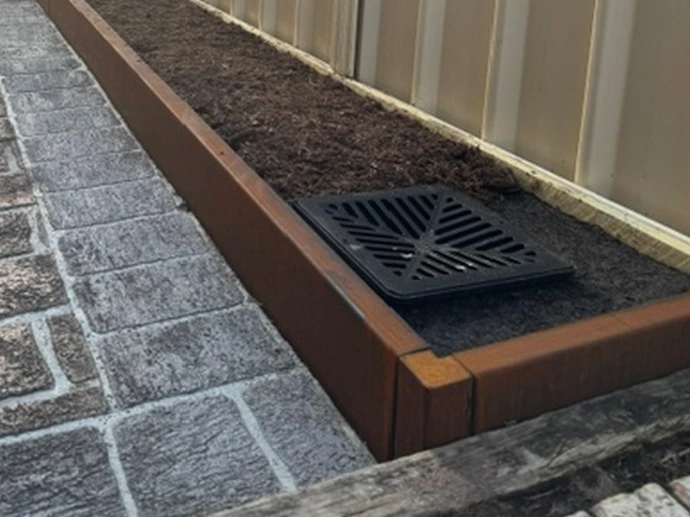
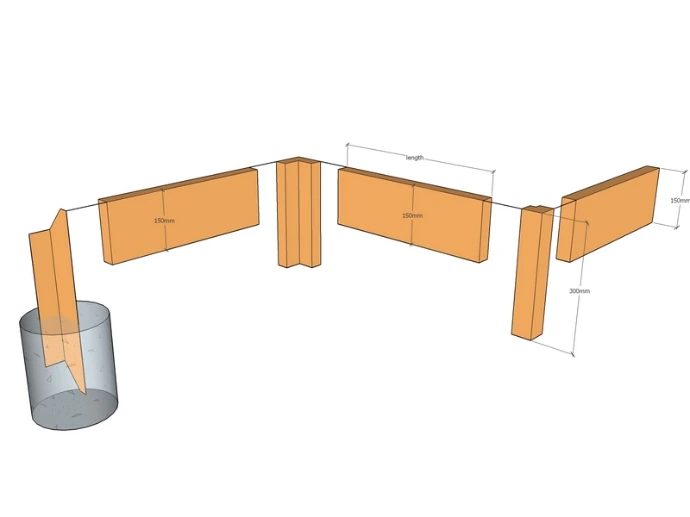
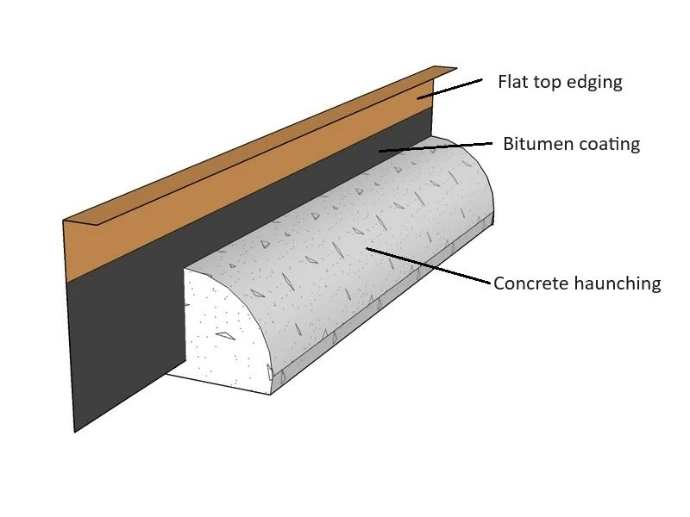
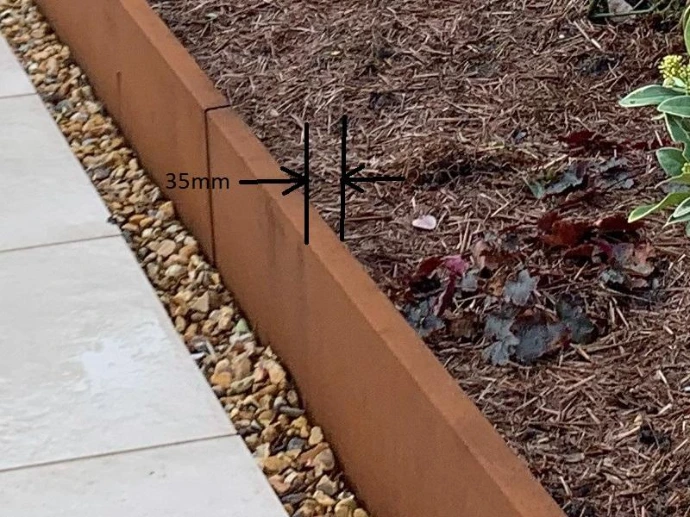
Flat top edging 100mm, 150mm, 200mm, 250mm and 300mm tall
Child and pet friendly
Feature One
Adapt these three columns to fit your design need. To duplicate, delete or move columns, select the column and use the top icons to perform your action.
Feature Two
To add a fourth column, reduce the size of these three columns using the right icon of each block. Then, duplicate one of the columns to create a new one as a copy.
Feature Three
Delete the above image or replace it with a
Feature One
Adapt these three columns to fit your design need. To duplicate, delete or move columns, select the column and use the top icons to perform your action.
Feature Two
To add a fourth column, reduce the size of these three columns using the right icon of each block. Then, duplicate one of the columns to create a new one as a copy.
Feature Two
To add a fourth column, reduce the size of these three columns using the right icon of each block. Then, duplicate one of the columns to create a new one as a copy.
100mm tall edge 35mm flat top prices
150mm tall edge 35mm flat top prices
200mm tall edge 35mm flat top prices
250mm tall edge 35mm flat top prices
300mm tall edge 35mm flat top prices
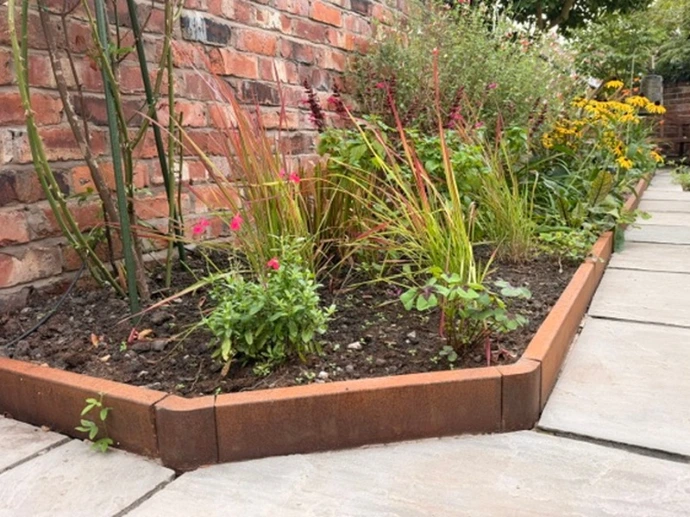
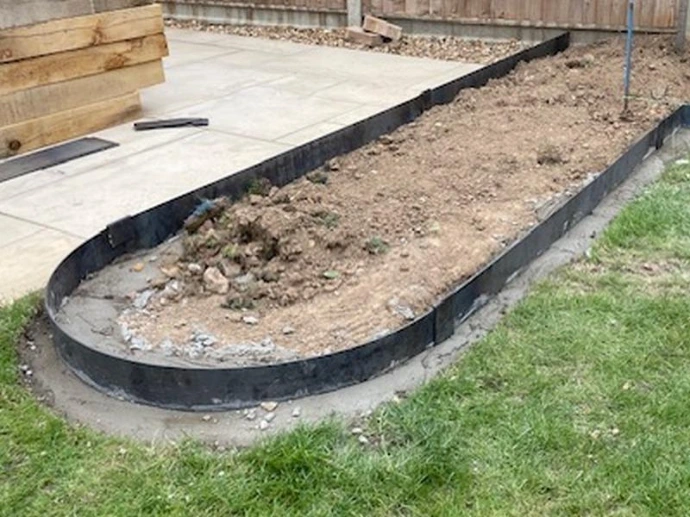
Use preformed corners and curves to create unique garden layouts
Quarter, Eighth and Half circles, plus square corners are all in stock
Feature One
Adapt these three columns to fit your design need. To duplicate, delete or move columns, select the column and use the top icons to perform your action.
Feature Two
To add a fourth column, reduce the size of these three columns using the right icon of each block. Then, duplicate one of the columns to create a new one as a copy.
Feature Two
To add a fourth column, reduce the size of these three columns using the right icon of each block. Then, duplicate one of the columns to create a new one as a copy.
Feature One
Adapt these three columns to fit your design need. To duplicate, delete or move columns, select the column and use the top icons to perform your action.
Feature Two
To add a fourth column, reduce the size of these three columns using the right icon of each block. Then, duplicate one of the columns to create a new one as a copy.
Feature Two
To add a fourth column, reduce the size of these three columns using the right icon of each block. Then, duplicate one of the columns to create a new one as a copy.
Feature One
Adapt these three columns to fit your design need. To duplicate, delete or move columns, select the column and use the top icons to perform your action.

Feature Two
To add a fourth column, reduce the size of these three columns using the right icon of each block. Then, duplicate one of the columns to create a new one as a copy.
Feature Two
To add a fourth column, reduce the size of these three columns using the right icon of each block. Then, duplicate one of the columns to create a new one as a copy.
Feature One
Adapt these three columns to fit your design need. To duplicate, delete or move columns, select the column and use the top icons to perform your action.
Feature Two
To add a fourth column, reduce the size of these three columns using the right icon of each block. Then, duplicate one of the columns to create a new one as a copy.
Feature Two
To add a fourth column, reduce the size of these three columns using the right icon of each block. Then, duplicate one of the columns to create a new one as a copy.

Feature One
Adapt these three columns to fit your design need. To duplicate, delete or move columns, select the column and use the top icons to perform your action.
Feature Two
To add a fourth column, reduce the size of these three columns using the right icon of each block. Then, duplicate one of the columns to create a new one as a copy.
Feature Two
To add a fourth column, reduce the size of these three columns using the right icon of each block. Then, duplicate one of the columns to create a new one as a copy.
Feature One
Adapt these three columns to fit your design need. To duplicate, delete or move columns, select the column and use the top icons to perform your action.
Feature Two
To add a fourth column, reduce the size of these three columns using the right icon of each block. Then, duplicate one of the columns to create a new one as a copy.
Feature Two
To add a fourth column, reduce the size of these three columns using the right icon of each block. Then, duplicate one of the columns to create a new one as a copy.
Feature One
Adapt these three columns to fit your design need. To duplicate, delete or move columns, select the column and use the top icons to perform your action.
Feature Two
To add a fourth column, reduce the size of these three columns using the right icon of each block. Then, duplicate one of the columns to create a new one as a copy.
Feature Two
To add a fourth column, reduce the size of these three columns using the right icon of each block. Then, duplicate one of the columns to create a new one as a copy.
2nd Jan 2026